
Slack
Automate notifications and commands with Slack and emma
With emma's Slack integration, you can connect directly with your team's Slack workspace. Streamline your workflow through real-time notifications, slash commands, and interactive messages.
Setup
Slack and emma can be easily integrated through OAuth authentication. No package installation or coding required.
Once you select Slack on the integrations page and complete OAuth authentication, you can start using emma in Slack immediately.
Slash Commands
/emma switch
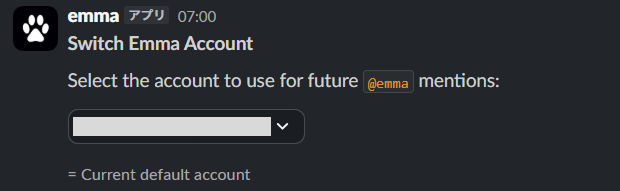
When you have multiple emma accounts (email addresses), the switch command allows you to select which email address to use for emma. Since Slack to emma is a 1:N relationship, this command lets you switch between your emma accounts.
Usage
/emma switchWhen you execute this command, a list of available emma accounts will be displayed, and you can select which email address to use.
/emma status
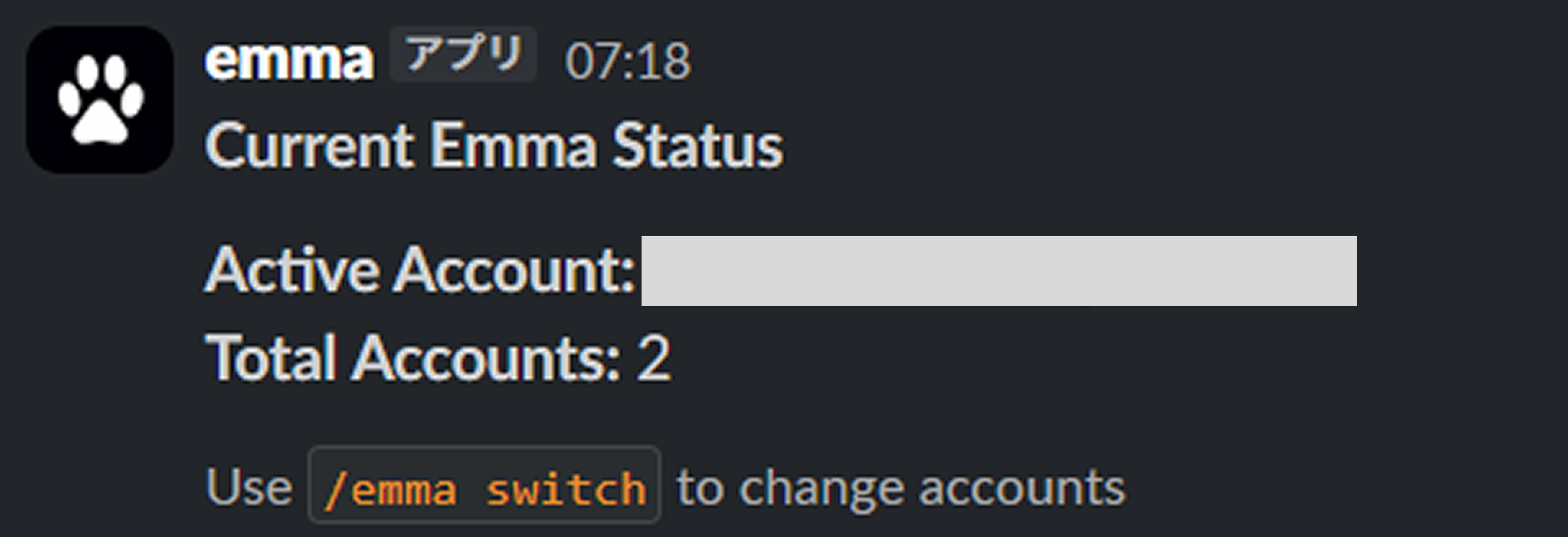
Check the current status of emma from Slack. You can retrieve real-time information such as connection status, active account, running tasks, and system health.
Usage
/emma statusWhen you execute this command, emma's current status information will be displayed, including connection status, account in use, and the number of running tasks.
/emma accounts

Retrieve information about all accounts connected to emma. You can view a list of registered email addresses, account types, connection status, permission levels, and other detailed information.
Usage
/emma accountsWhen you execute this command, all account information registered with emma will be displayed, including email addresses, status, and permissions for each account.
Mention

By mentioning @emma in Slack channels or threads, you can interact with emma in a natural conversational format. Unlike slash commands, mentions allow for more flexible instructions and questions, and you'll receive context-aware responses.
Using mentions, you can naturally invoke emma within the flow of team conversations and receive task execution and support. emma considers the context before and after in the thread when responding.
Example
@emma 今日のタスクリストを作成してYou can mention @emma like this and send instructions or questions in natural language. emma understands the context and executes appropriate responses and actions.
Features
Slack_Operator supports the following 25 tools:
Authentication
Slack uses OAuth 2.0 authentication. Securely authenticate with Slack OAuth and grant only the necessary permissions.
| Category | Tools | ||||||||||||||||||||||
|---|---|---|---|---|---|---|---|---|---|---|---|---|---|---|---|---|---|---|---|---|---|---|---|
| Search & Retrieve | 6 | ||||||||||||||||||||||
| |||||||||||||||||||||||
| File Operations | 4 | ||||||||||||||||||||||
| |||||||||||||||||||||||
| Posting | 2 | ||||||||||||||||||||||
| |||||||||||||||||||||||
| Reactions | 3 | ||||||||||||||||||||||
| |||||||||||||||||||||||
| Message Editing | 2 | ||||||||||||||||||||||
| |||||||||||||||||||||||
| Pins | 3 | ||||||||||||||||||||||
| |||||||||||||||||||||||
| Scheduling | 3 | ||||||||||||||||||||||
| |||||||||||||||||||||||
| Channel Info | 2 | ||||||||||||||||||||||
| |||||||||||||||||||||||
Prerequisites
- • emma account
- • Admin access to Slack workspace
- • Permission to install apps